User management
Additional user info
Section titled “Additional user info”Admin users can set the first name, last name, and organization for other users. Users can also fill these in for themselves on their My page.
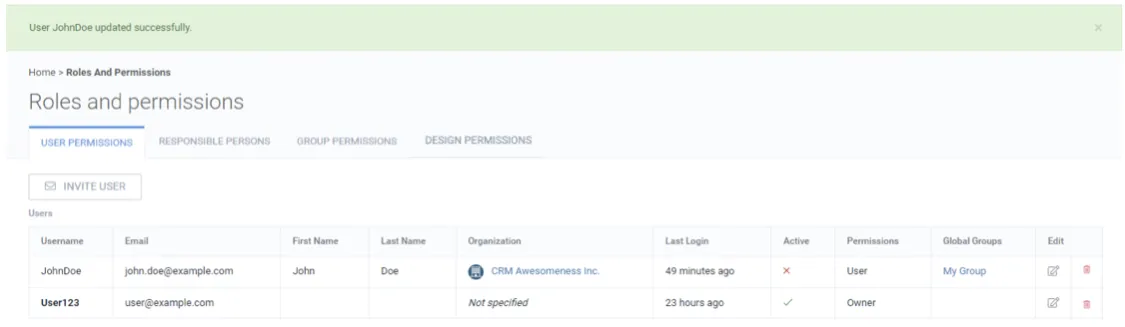
1. Navigate to the avatar drop-down and click Roles and permissions.
2. Go to the User permissions tab.
3. Click the edit button for a user.
4. Fill in the first name, last name, and select an organization.
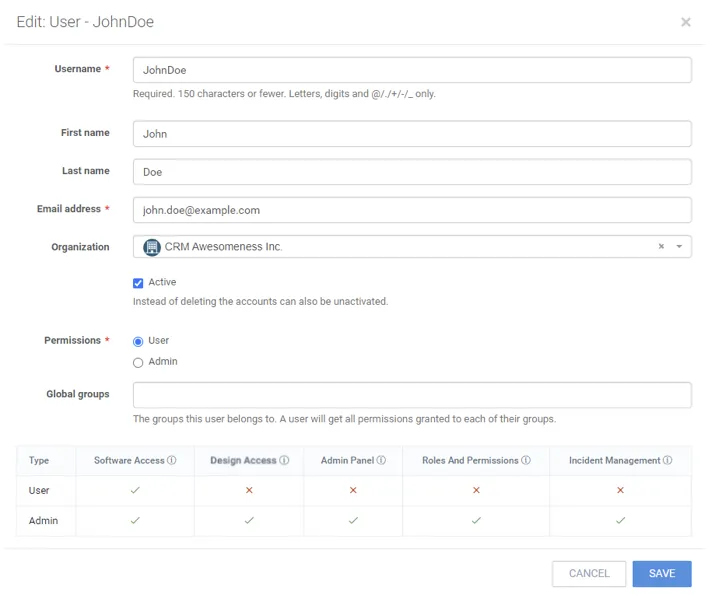
5. Click Save.
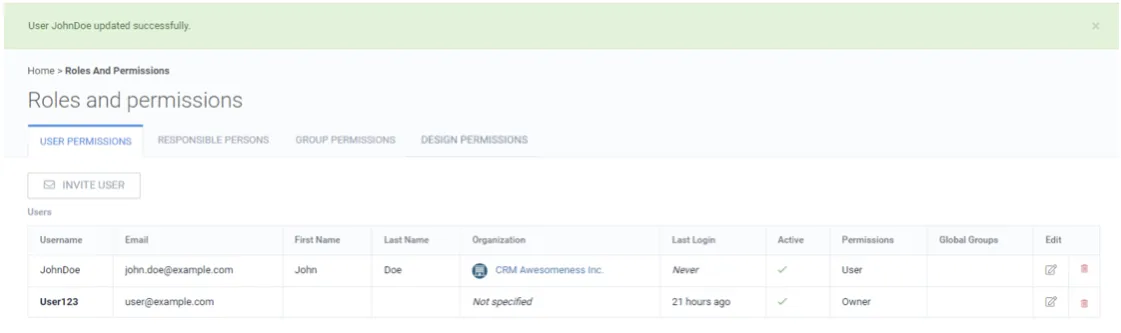
Deactivating users
Section titled “Deactivating users”Users can be deactivated, and inactive users cannot access the software.
1. Click the edit button for a user.
2. Uncheck the Active checkbox.
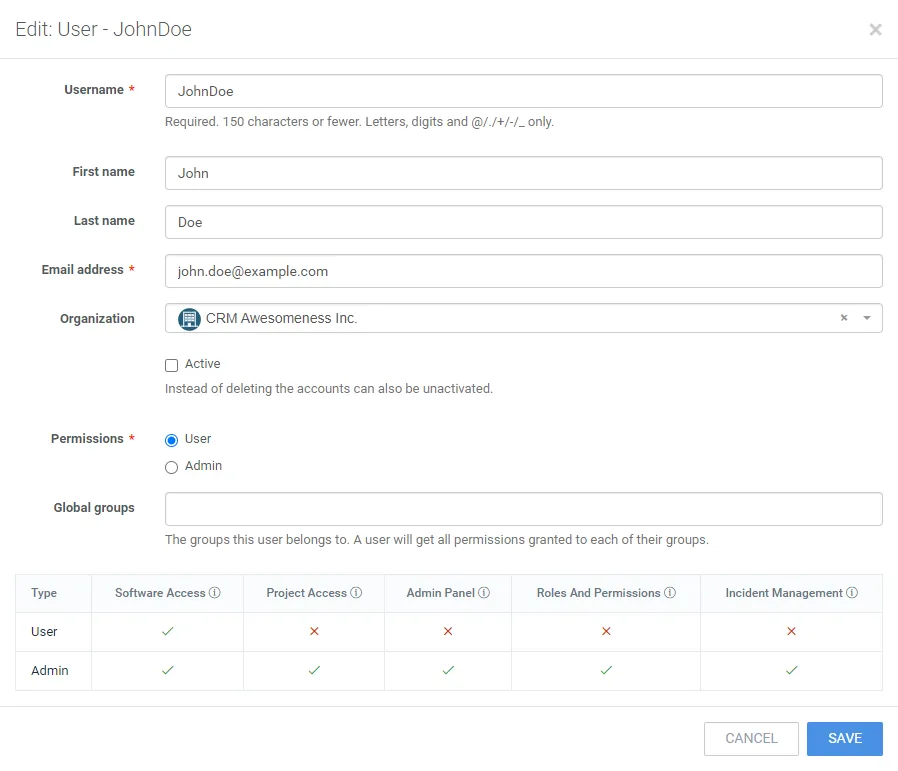
3. Click Save.
Deleting users
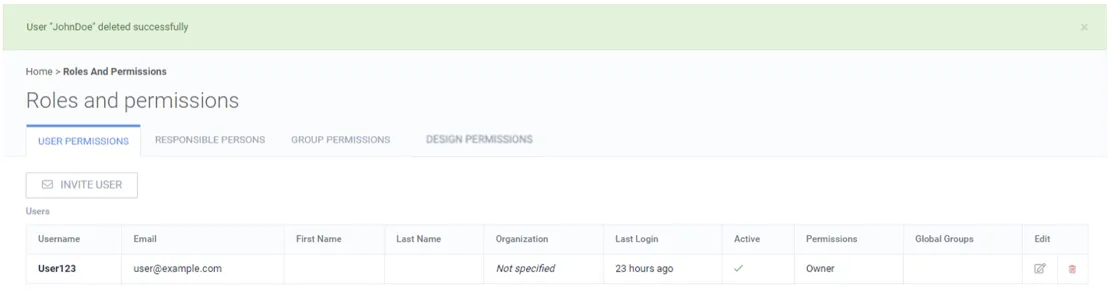
Section titled “Deleting users”When it is certain that a user account will no longer be used, the account can be deleted.
1. Click the delete button for a user.
2. Check the Confirm deletion checkbox.
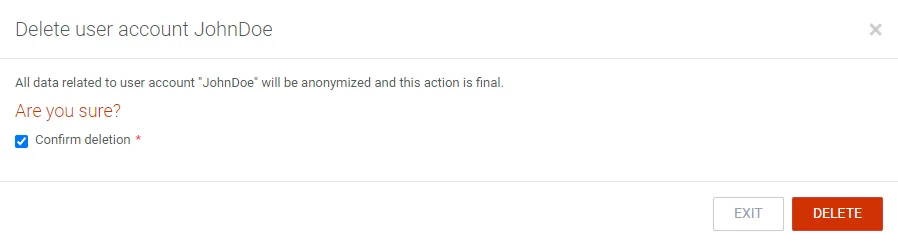
3. Click Delete.