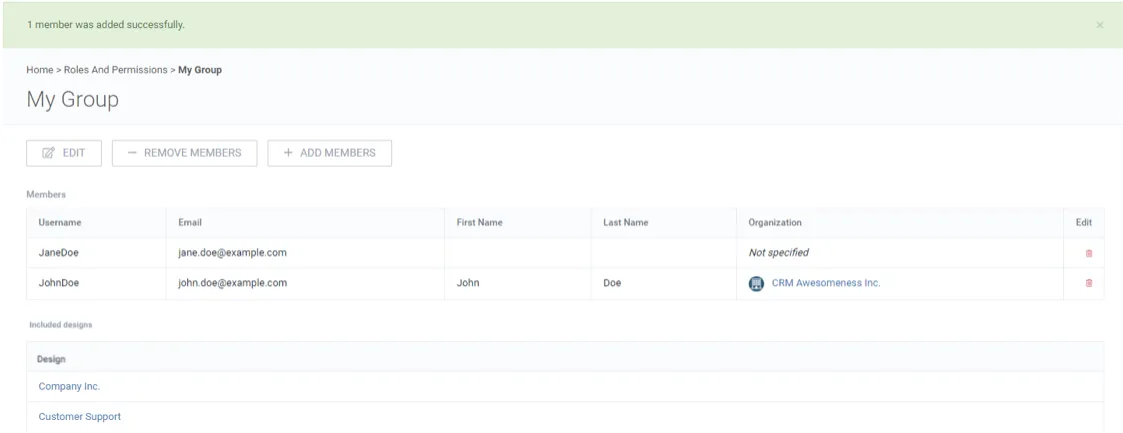
Group permissions
Global groups is an admin feature for managing design permissions for software users.
Create global groups
Section titled “Create global groups”1. Navigate to the avatar drop-down and click Roles and permissions.
2. Go to the Group permissions tab.
3. Click + Create global group.

4. Name the group and select members.
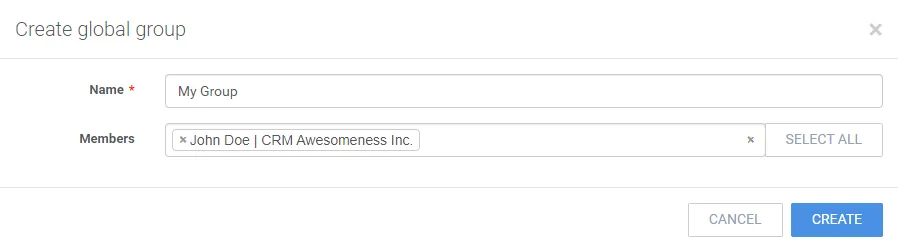
5. Click Create.
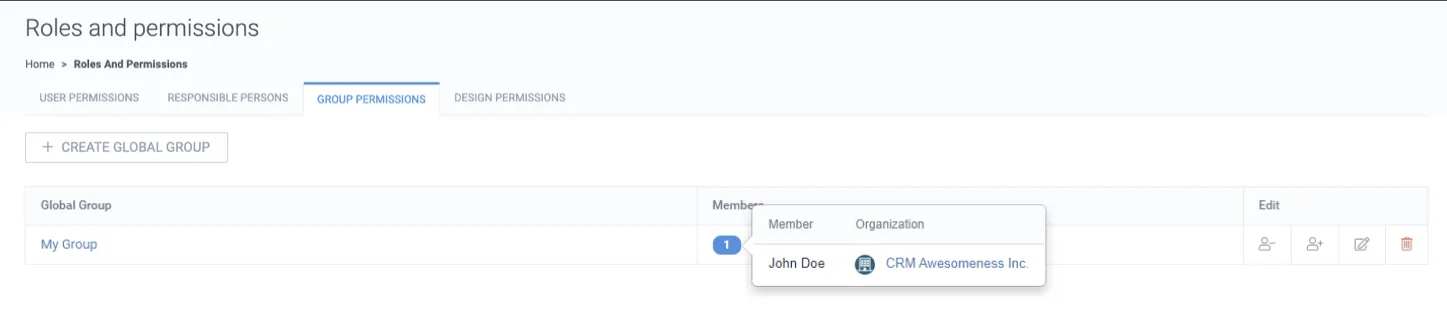
Attach global groups to designs
Section titled “Attach global groups to designs”1. Go to the Design permissions tab.
2. Click Manage permissions for a design.
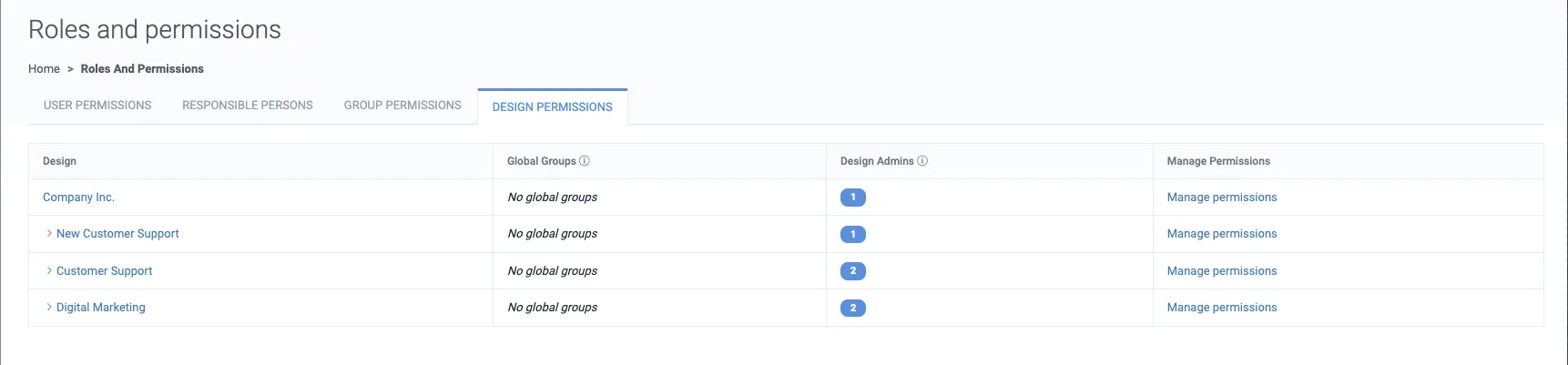
3. Select global groups, and use Inherit changes to also modify sub-designs.
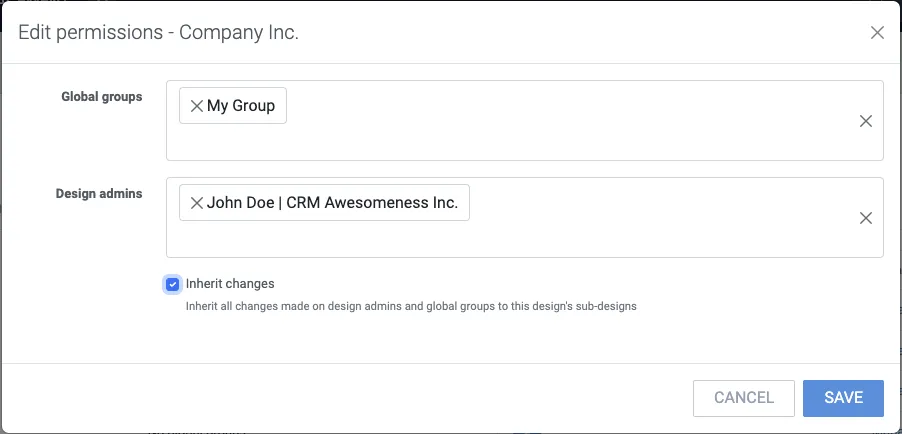
4. Click Save.
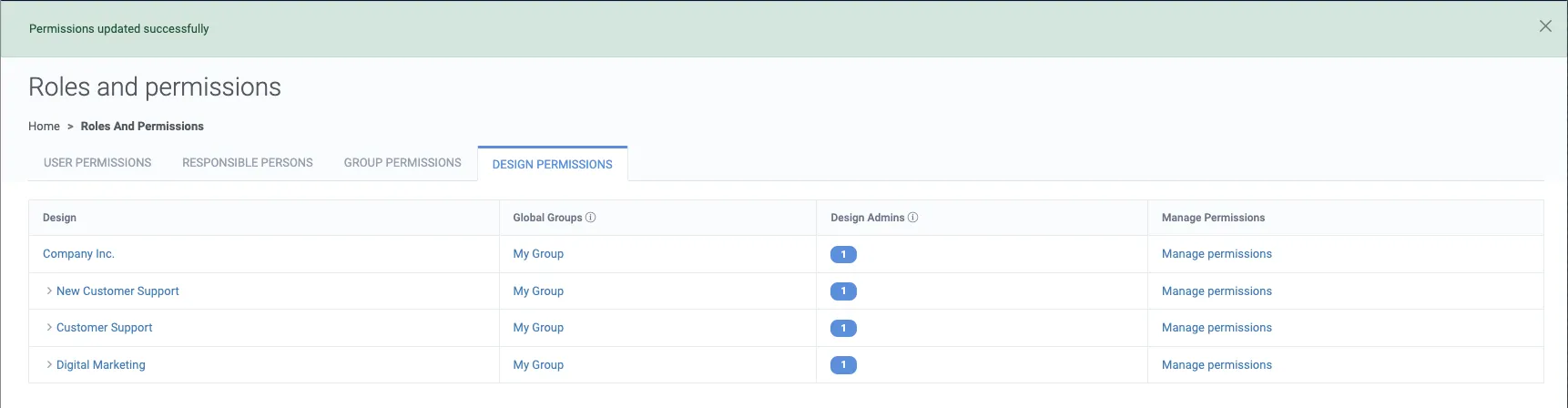
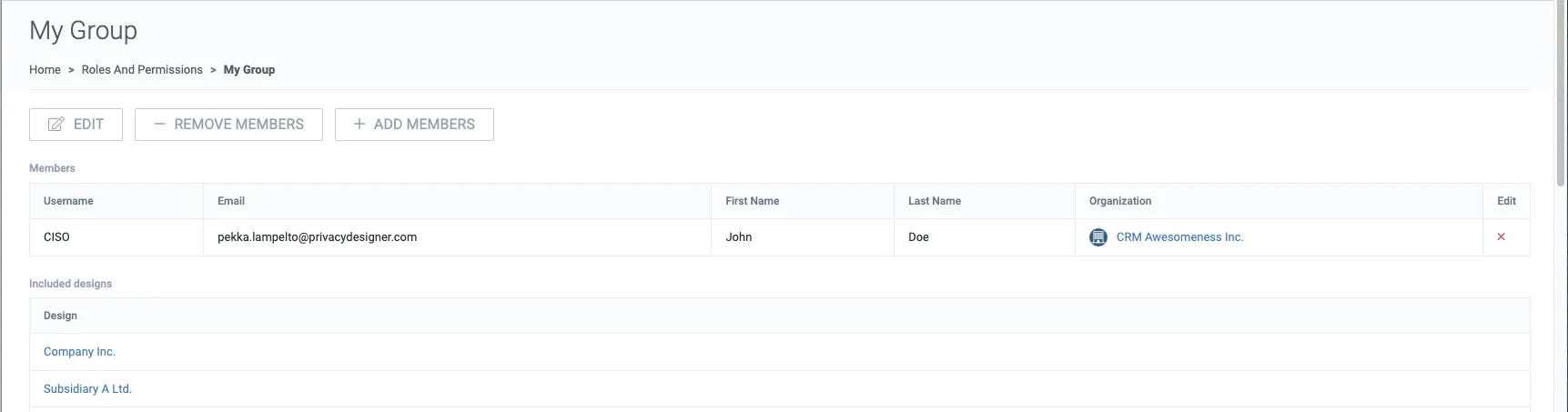
5. Observe a global group by clicking its name.
Managing global groups
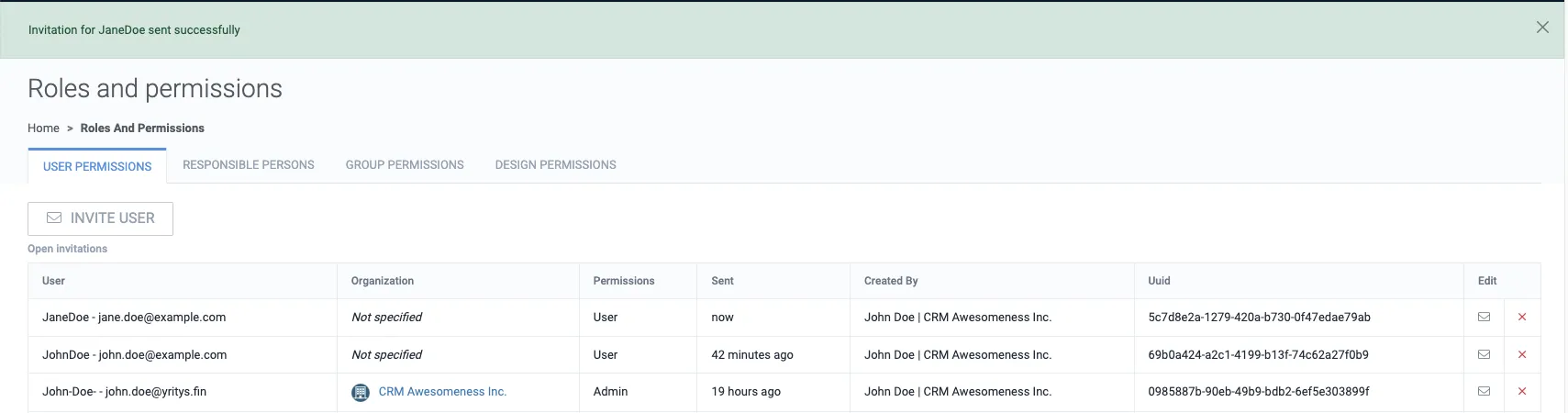
Section titled “Managing global groups”You can select the desired global groups when inviting a user.
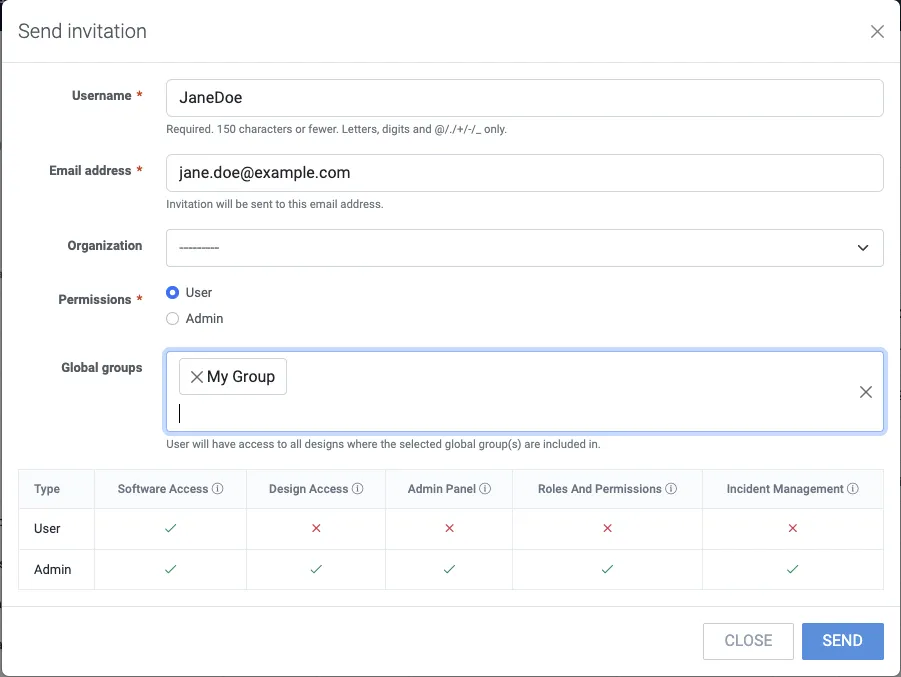
After the invitation has been accepted, the global groups column shows that the user is part of the selected group.
Remove members
Section titled “Remove members”1. On the global group page, click - Remove members.
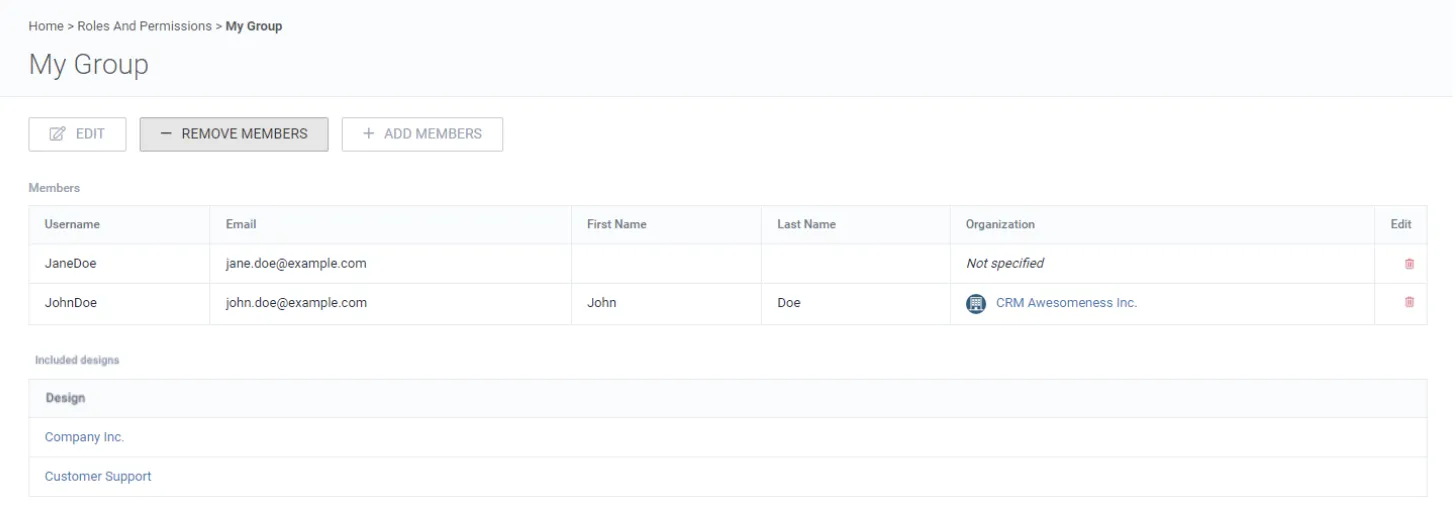
2. Select the members that should be removed from the global group.
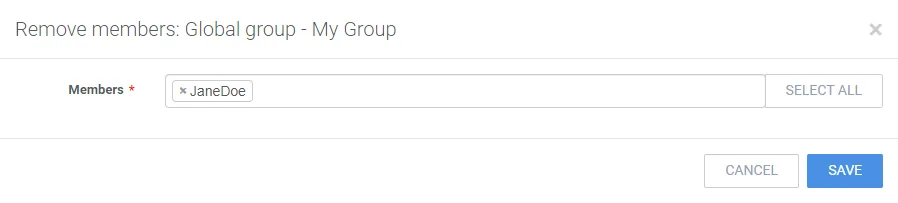
3. Click Save.
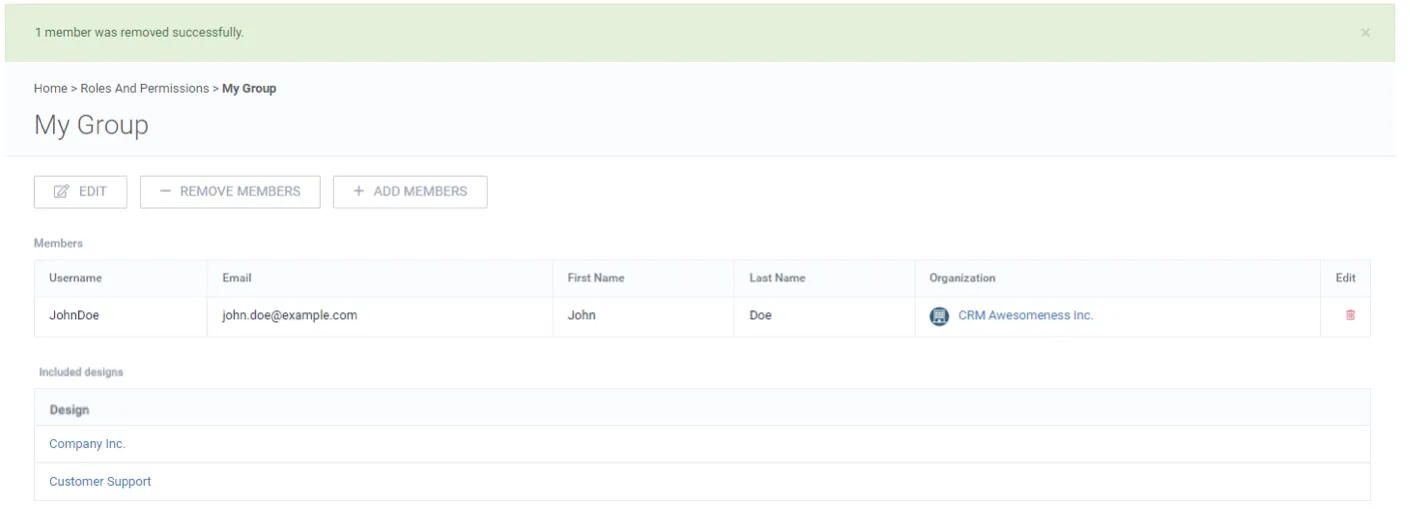
Add members
Section titled “Add members”1. On the global group page, click + Add members.
2. Select the members to be added to the global group.
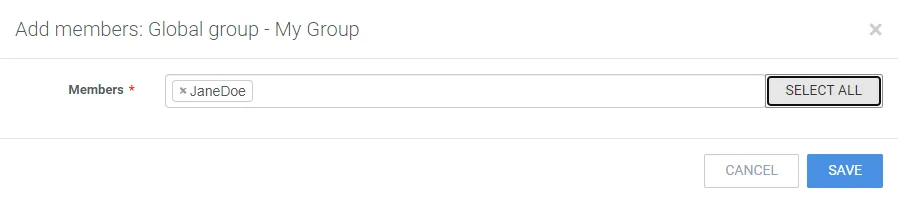
3. Click Save.